Weekend Harbor
Windows previewYour web apps, together.
Keep mail, projects, notes, and your other everyday websites in one desktop window. Switch from the sidebar and pick up where you left off.
Free to download and use. No fees. No subscription.
01 / Your workspace
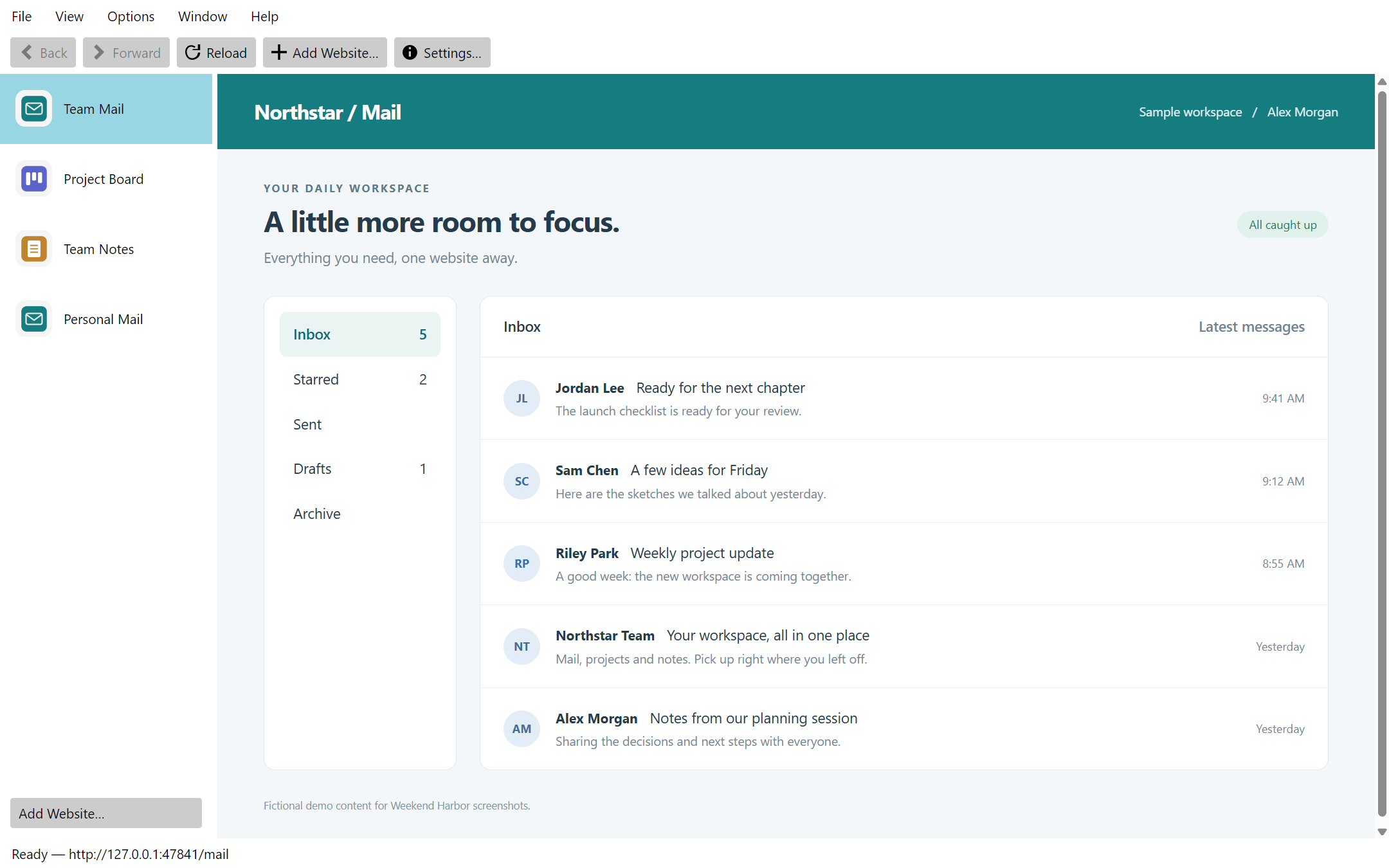
Move between websites. Keep your place.
Choose a website in the sidebar to switch to its retained browser view. Your other pages stay open in Harbor while you move between mail, projects, notes, and more. Choose a light or dark appearance for Harbor; each website keeps its own appearance.
02 / Your workspace
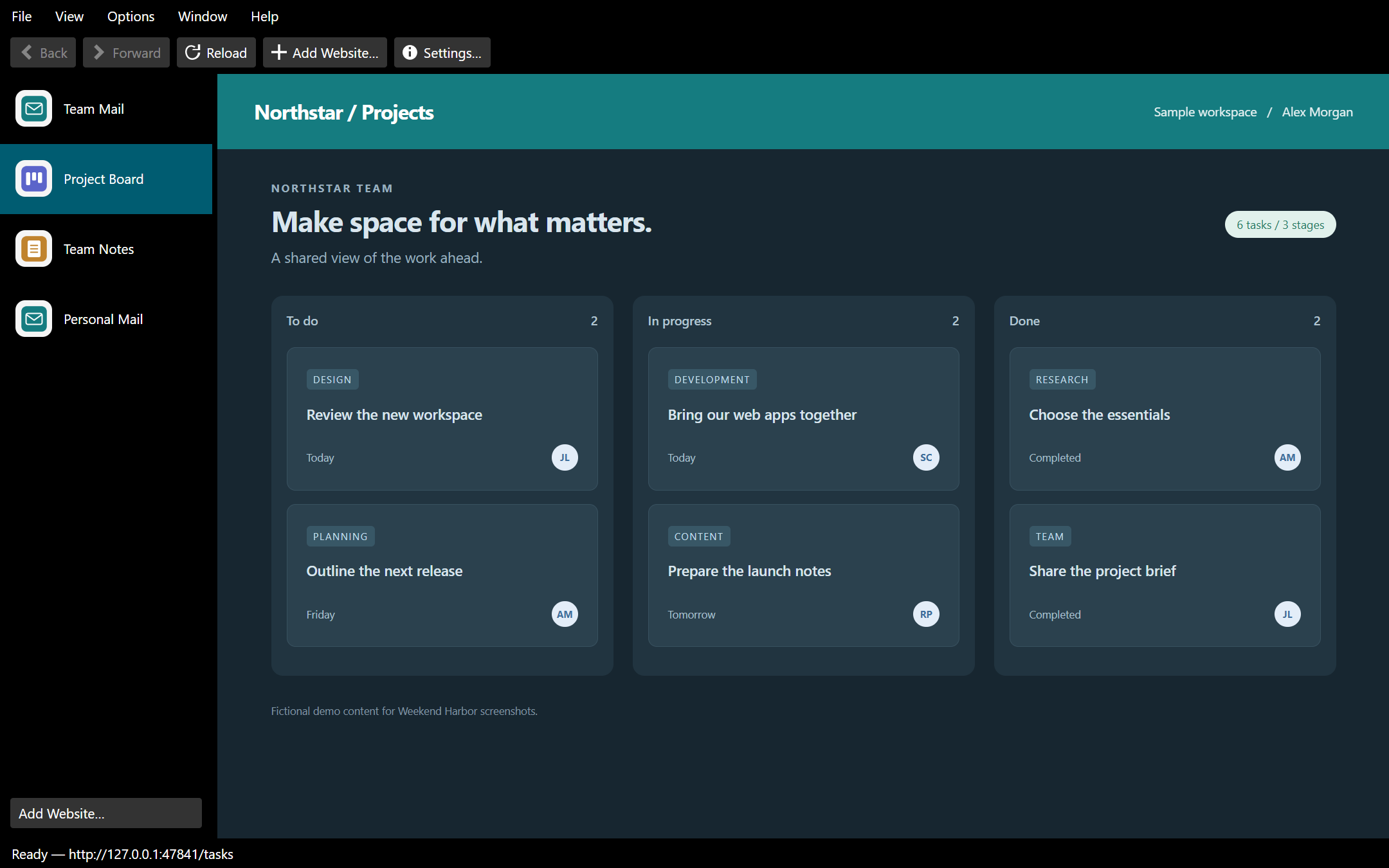
Keep the sidebar simple.
Recognize websites by their cached favicons, or use initials as a fallback. Show names alongside the icons or hide the names and resize the sidebar for a quieter workspace.
03 / Your workspace
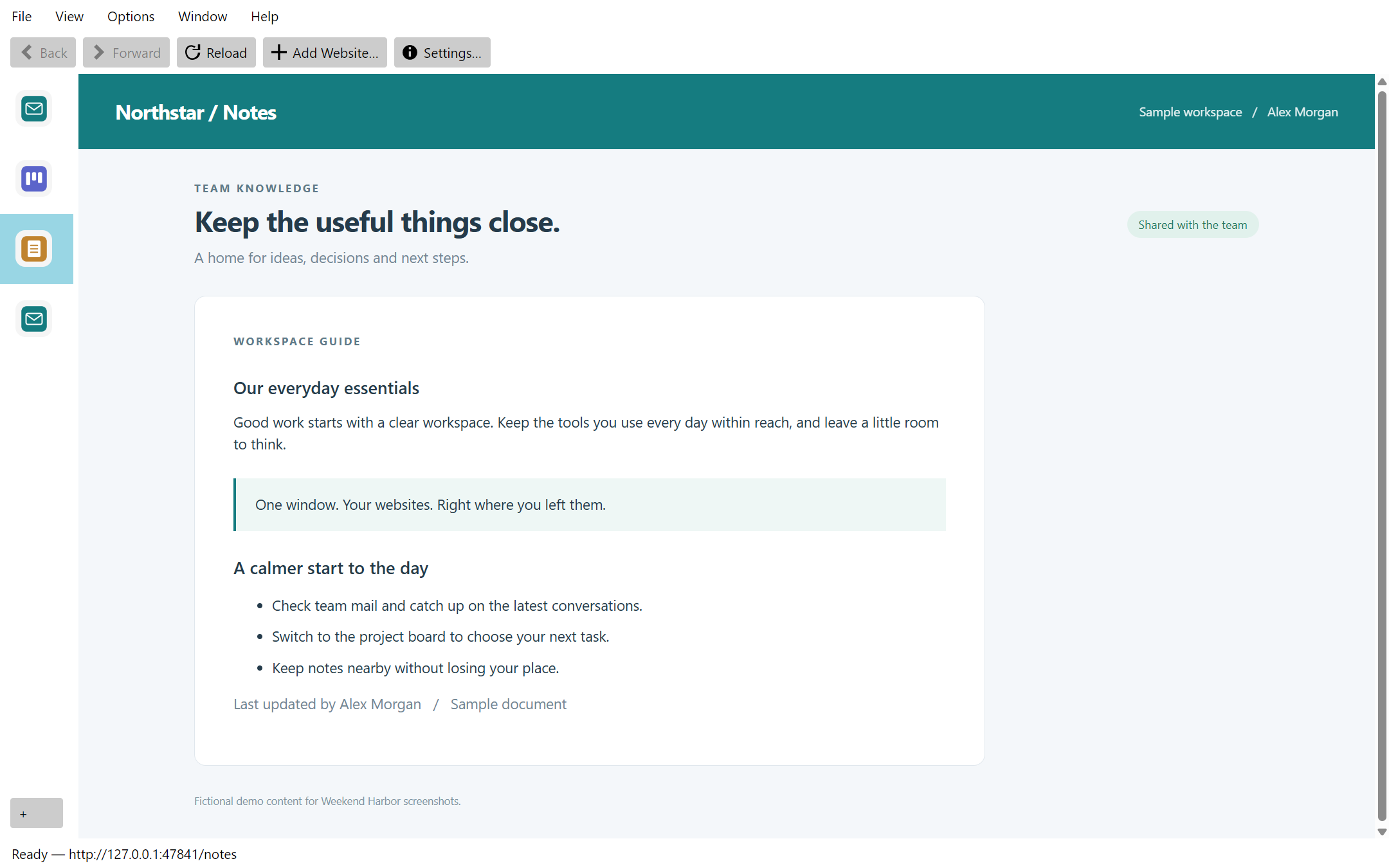
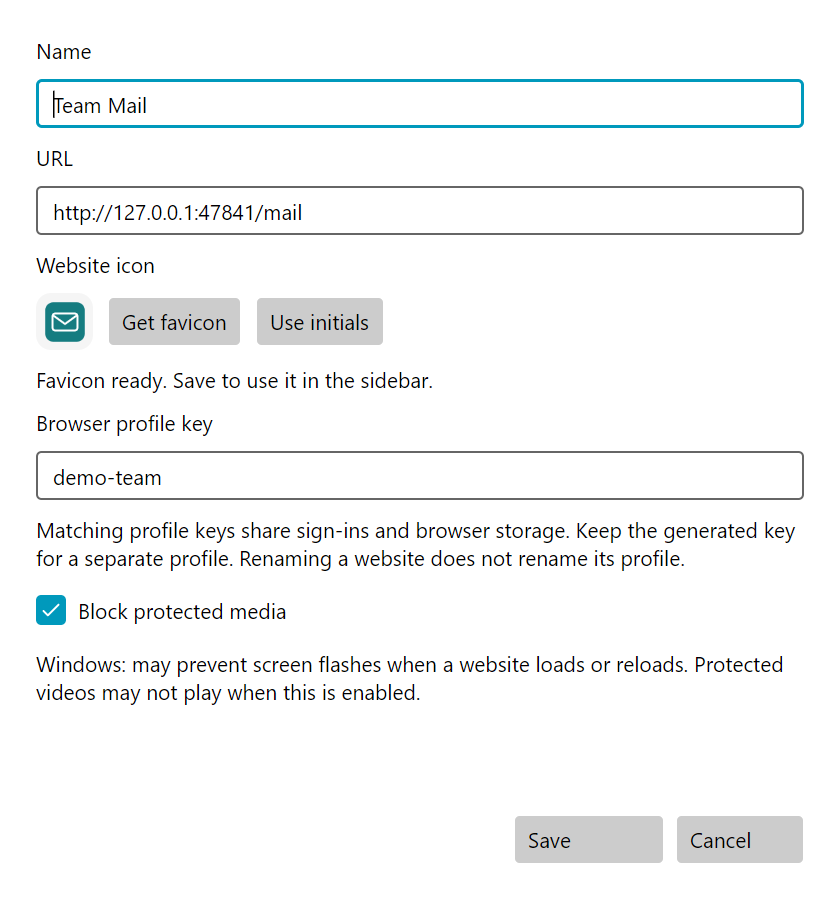
Choose icons, profiles, and website options.
Use Get favicon to preview and save a website icon, or choose Use initials. Cached icons stay in place when you change a website URL. Give websites the same browser profile key to share cookies and sign-ins, or keep separate profiles for different accounts. A per-website Block protected media option can help on Windows systems where protected-media activity causes display flashes; protected videos may not play with it enabled.
04 / Your workspace
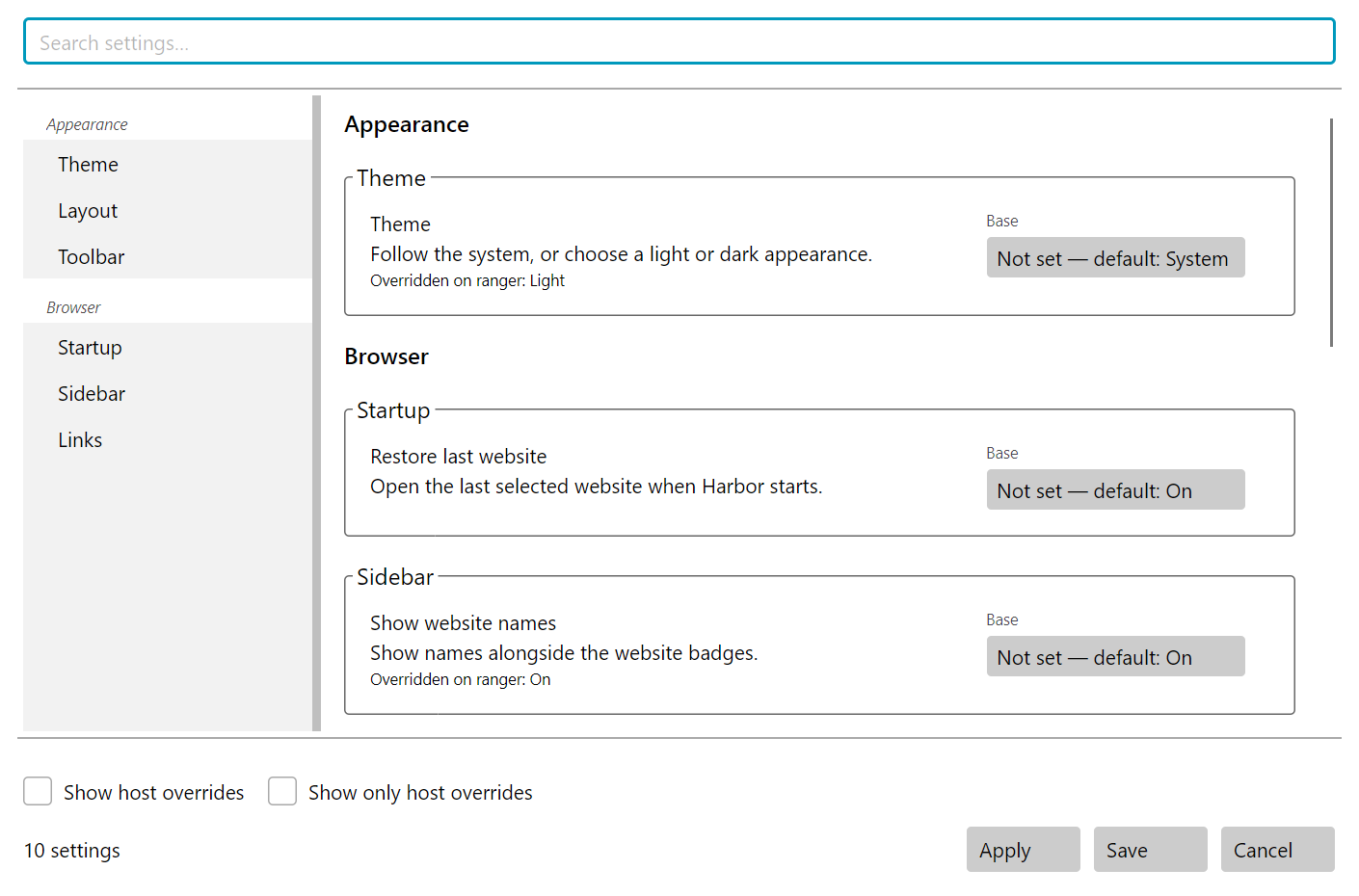
Set up a workspace that fits.
Choose startup restoration, website-name visibility, popup behavior, appearance, and shell layout in the Settings window.
05 / Your workspace
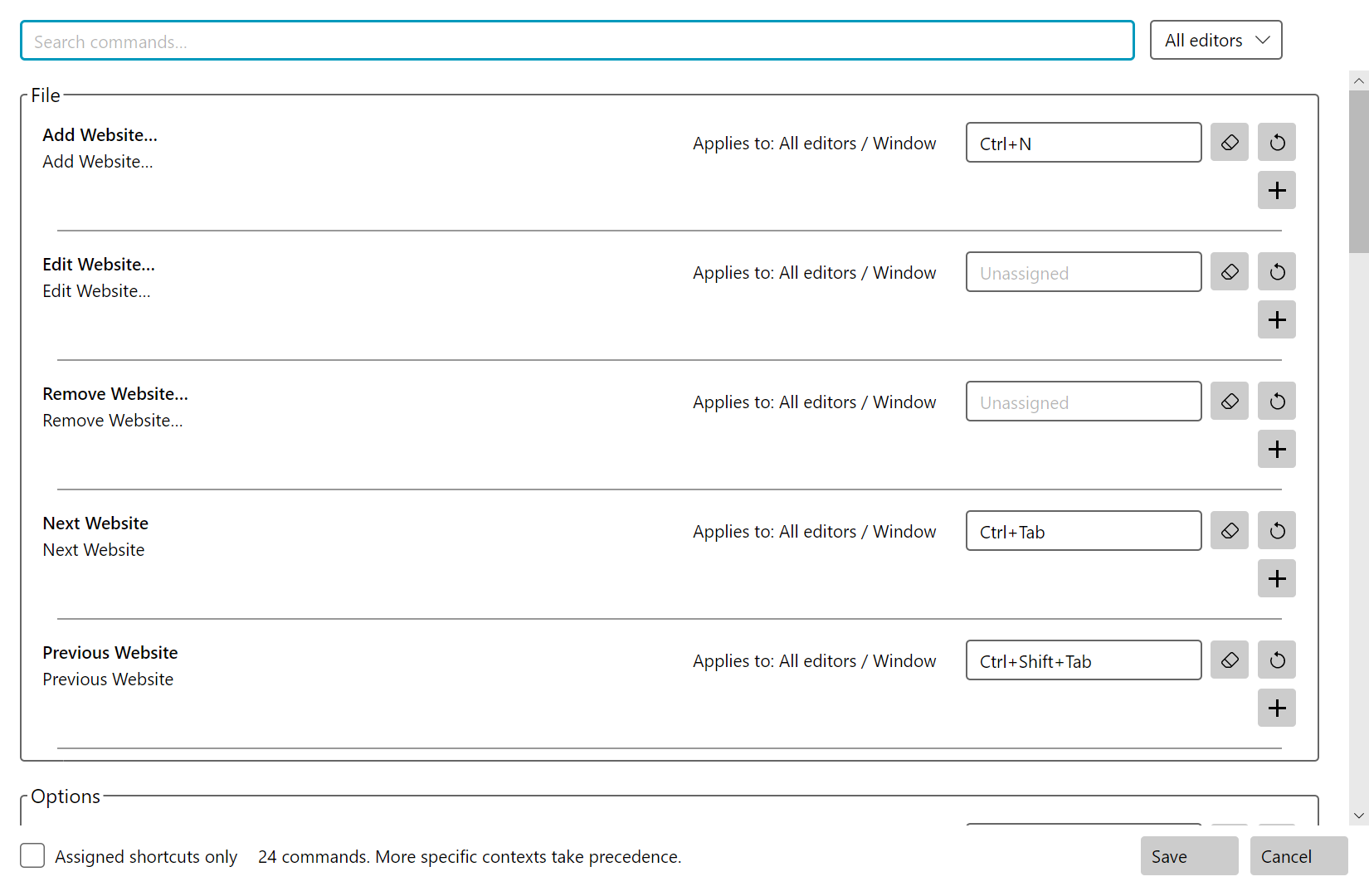
Make the shortcuts your own.
Review and customize application commands in Keyboard Shortcuts. Shortcuts inside embedded websites can behave differently; check the commands you rely on.
Available in the current app
The everyday essentials.
Windows preview
Weekend Harbor is on its way.
Free to download and use. No purchase price, license fees, or subscription.
Microsoft Edge WebView2 Runtime is required. Windows is the current verified platform; macOS and Linux support is not yet verified.
Public download coming soon. Harbor is currently being tested; a verified installer is not linked here yet.
Ask about Weekend Harbor